

How Does a Touchscreen Work? Sensors Explained
On this page· 13
A touchscreen detects where a finger changes an electric field or a light beam at a grid of points, then sends those coordinates to the device. You're probably doing it right now, thumb paused over a message, waiting for the glass to notice you.
Say the tap doesn't land because your fingertip is still damp from the sink. The phone isn't ignoring you out of spite. It's watching a grid of tiny electrical readings and deciding whether the latest change looks like skin. That decision is the whole trick behind how a touchscreen works, and it fails in predictable ways once gloves, rain, or a cheap screen film get in the way.
How a Touchscreen Turns a Touch Into a Location
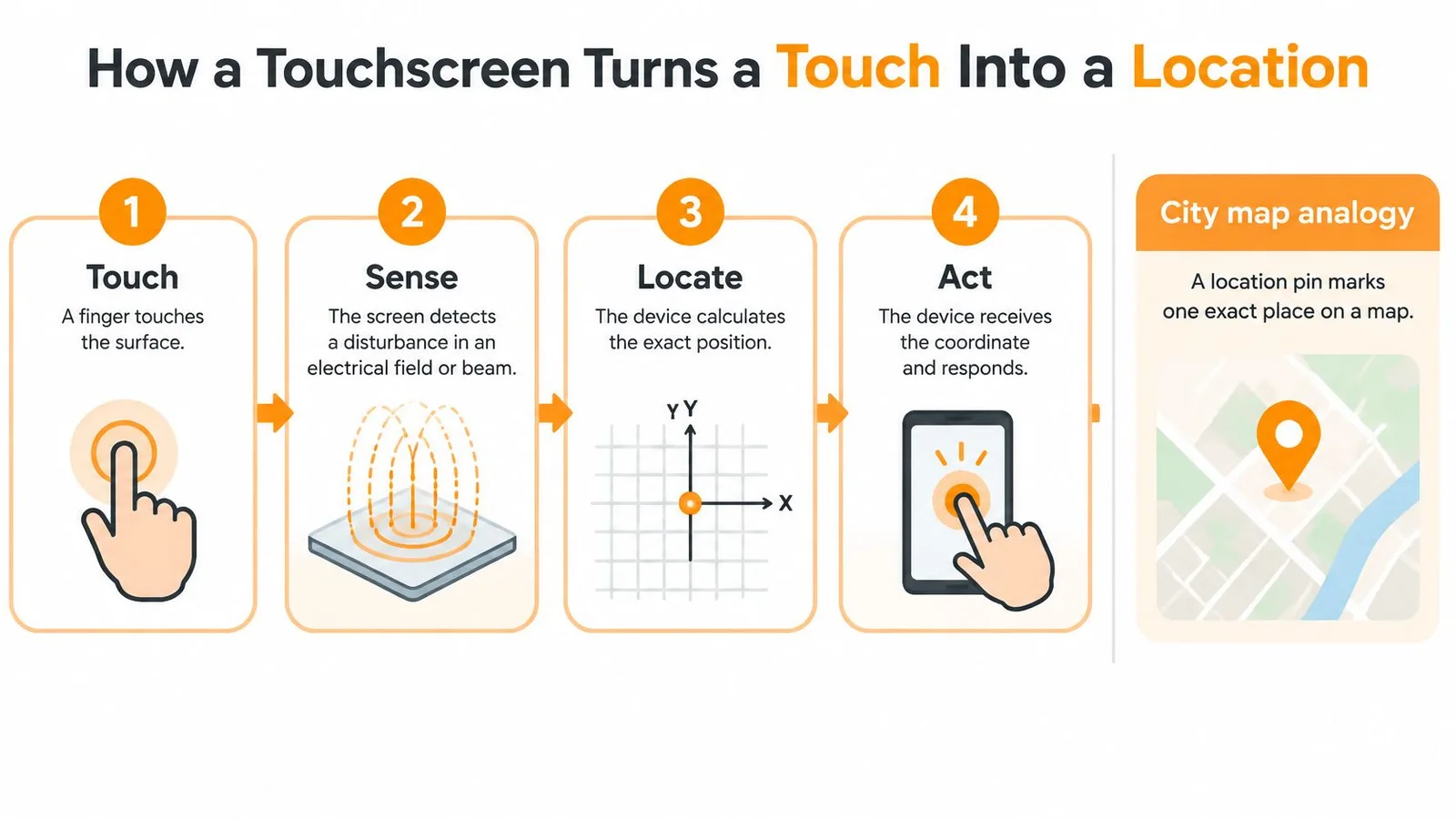
Finding a touch is like dropping a pin on a city map. You don't search every block. You name the street and the avenue, and the pin sits where those two lines cross. A modern screen does the same job with wires instead of roads.
Under the cover glass, patterned conductive electrodes run as horizontal transmitting lines and vertical receiving lines. Their crossings form a matrix of mutual capacitors, and each intersection is one possible touch location. A 2021 review in the National Library of Medicine describes projected-capacitive panels as two patterned conductive layers separated and crossed into a matrix. It also notes that mutual-capacitance sensing supports multi-touch and has become the widely used touchscreen method.
Capacitance is the ability of an arrangement of conductors to store electric energy. Your finger doesn't have to press a mechanical switch or touch the electrode metal. Your body's conductivity disturbs the local electric field. In a mutual-capacitance design, some of that field couples into your finger, so less charge moves between the crossing electrodes. The controller scans the grid, measures those changes, and calculates X and Y from the affected row and column. The processor then turns the coordinates into an operating-system event such as a tap, swipe, or pinch.
Seven stages of one tap
- Sensing layer: A sensor sits under the cover glass.
- Drive signal: The controller pushes a signal through the grid.
- Fingertip: Skin changes the readings at nearby crossings.
- Baseline: Each new reading is compared with a stored no-touch reference.
- Coordinates: The strongest changes become an X and a Y.
- Gesture: The operating system labels that point a tap, swipe, or pinch.
- App: The program draws the result on the display.
Separate intersections can be measured at the same time, which is why two fingers can pinch a photo instead of fighting over one point. The scan repeats many times each second, so a moving finger looks like a smooth line rather than a row of dots. Turning a measurement into a place is the same family of problem a receiver solves in how GPS works, except the map here is a sheet of electrodes under your thumb.
Practical rule: If you can name the crossing that changed, you can follow the tap. Software only decides what that crossing means.
Five Touchscreen Technologies Compared
A grocery checkout pad, a ticketing kiosk, and the phone in your pocket all answer to the word touchscreen, yet a gloved tap can register on one and vanish on another. Five sensing methods still show up in shops, factories, and lobbies, and they don't all care about your skin.
| Technology | How It Detects Touch | Accepted Input | Typical Uses |
|---|---|---|---|
| Projected capacitive | Finger changes the electric field at grid crossings | Bare finger, conductive stylus, thin gloves with conductive tips | Smartphones, tablets, laptops, ATMs |
| Surface capacitive | Finger draws current from the corners of one conductive layer | Bare finger or conductive stylus only | Older kiosks, some industrial panels |
| Resistive | Pressure closes a circuit between two flexible layers | Finger, glove, stylus, or any object that presses | Point-of-sale terminals, industrial handhelds |
| Surface acoustic wave | Finger absorbs part of ultrasonic waves crossing the glass | Bare or gloved finger, soft stylus | Public information kiosks, ticketing machines |
| Infrared | Finger blocks a grid of invisible light beams | Any opaque object, including fingers, gloves, and styluses | Interactive whiteboards, large-format displays |
Read the table left to right: the physics, then what the panel will accept, then where you'll meet it. Capacitive touch technology accounted for 58.2% of the global LCD touchscreen market in 2025, compared with 26.5% for resistive technology, according to Dataintelo's LCD touch screens market report. That split is why a phone and a checkout pad can share a name and still behave like different machines.
Projected capacitive is the phone, tablet, and laptop row. Surface capacitive is the older cousin: one conductive layer, current drawn toward the corners, and no interest in a gloved hand or a plastic pen.
Three methods that ignore electric skin
Resistive screens are a sandwich. Two flexible conductive sheets sit apart on tiny spacer dots, and a press bends the top sheet onto the bottom, closing a circuit like two pieces of foil tapped together. The controller reads voltage to find X and Y. A fingernail, a gloved hand, or the corner of a credit card all count, which is why point-of-sale terminals and industrial handhelds still use them. The price is clarity and wear: the top sheet flexes, so the image looks softer and the surface tires out.
Surface acoustic wave panels send ultrasonic waves across the glass from edge transducers. A finger soaks up part of the wave, and the controller times the dip, the way you'd notice where a ripple in a pond gets interrupted. Public information kiosks and ticketing machines use it because the glass stays optically clear. Dirt, water droplets, or any object that absorbs or scatters the wave can fake a touch or hide a real one.
Infrared frames line two adjacent edges with LEDs and sensors, building a grid of invisible beams like the alarm across a shop doorway. A blocked horizontal beam plus a blocked vertical beam names the point. Interactive whiteboards and large displays use it because any opaque object counts. The bezel has to be thick enough to hold the emitters, and strong sunlight or dust can break beams the same way a finger does.
A flat consumer phone is almost always the first row. A screen that works with any stick is usually resistive or infrared, and it paid for that freedom with a thicker frame, a softer image, or both.
Each row trades clarity, durability, and cost against what counts as a finger. Capacitive panels won consumer devices because a hard glass cover, a sharp display, and multi-touch gestures mattered more than working with a pencil.
Question 1 of 5
Why can a resistive touchscreen register a tap from a gloved finger or a plastic stylus?
Inside a Projected-Capacitive Screen
Look at a phone edge-on and the touch sensor is almost invisible. It has to be. The picture has to shine through the same stack your finger is changing.
The stack from the outside in
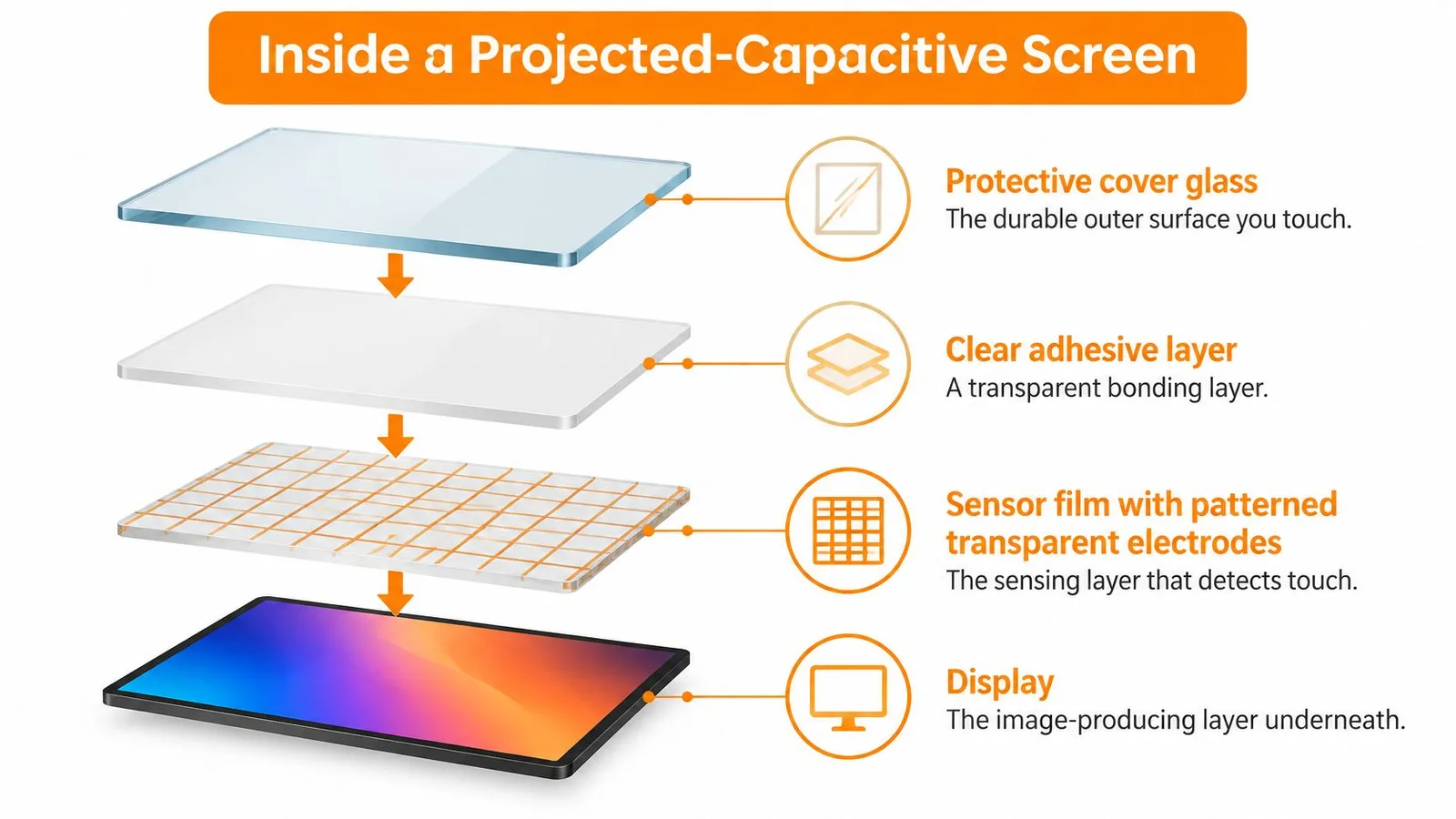
From the outside, the stack is usually four layers.
- Protective cover glass: This is the durable surface you touch, often chemically strengthened so a pocket key doesn't end the week.
- Clear adhesive: A transparent bond holds the cover to the sensor so there's no air gap to blur the image or weaken the field.
- Sensor film: Patterned transparent electrodes sit here. This is the layer that notices you.
- Display: The OLED or LCD panel underneath only makes the picture. It doesn't find your finger.
The electrodes are indium tin oxide (ITO), a metal oxide that's conductive and still clear enough to sit over a bright panel. Lines run as transmitting X electrodes and receiving Y electrodes, separated by an insulating layer. Think of a window screen. Every wire crossing is a tiny capacitor, a sensor node, and your finger changes how much charge gets through the nearby crossings.
How the controller reads one node
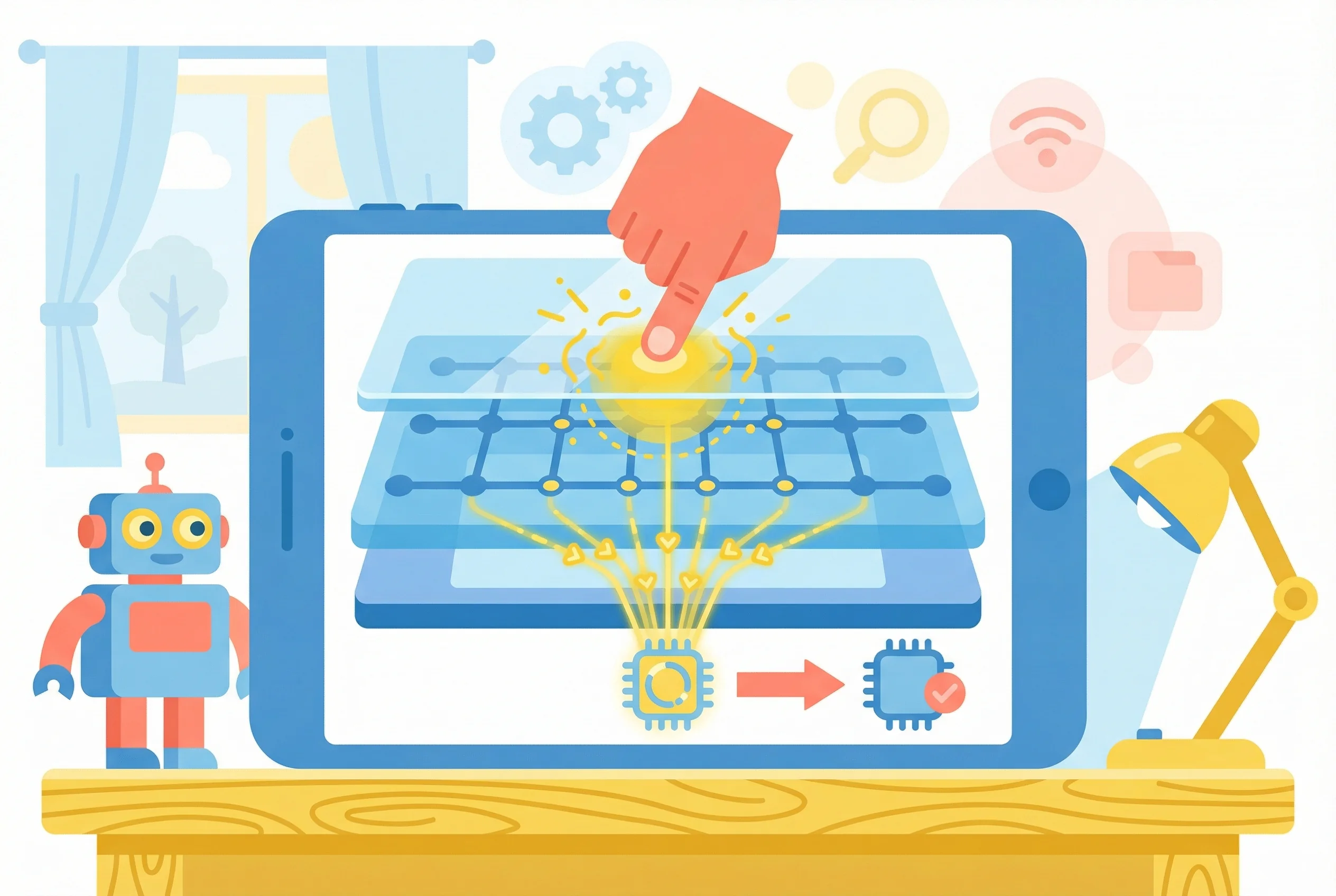
A Microchip design note on capacitive touch sensors walks through the measurement. The controller drives logic-pulse bursts onto selected X electrodes and measures the charge coupled into the crossing Y electrodes through the panel dielectric. Scan the whole matrix and you get a two-dimensional map of capacitance change.
Your finger acts as a third electrode. Part of the electric field is redirected through your body toward ground, and the finger can also alter the direct coupling between X and Y. The controller sees a change in apparent mutual capacitance and compares it with a calibrated touch threshold. Firmware then interpolates the signal across neighboring nodes, so the reported point can sit between the wires rather than snapping to a fixed button.
Charge leaving through your body is a return path, in the same broad family as the charge that moves in how batteries work, except here the goal is to measure the leak, not to store energy.
Mutual-capacitance sensing keeps the electric field closer to the electrode plane than self-capacitance sensing. Done with a careful layout, that generally cuts pickup from distant objects, improves noise performance, and allows longer sensor traces. A hovering palm is less likely to look like a press. The whole assembly is still just this: glass cover, grid of crossings, display underneath.
Question 2 of 5
Why does a phone screen use a see-through layer of indium tin oxide to sense touch, instead of letting the display panel handle that job?
How the Controller Separates a Finger From Noise
The finger's signal is small next to everything else the panel already measures. Baseline capacitance, parasitic capacitance, and stray fields are all larger than the little dip your skin makes. The controller's real job is sorting that dip out of the noise.
Microchip's sensor model treats the finger's touch capacitance, the human-body capacitance, and the body-to-earth capacitance as a series return path. That path reduces charge transferred from an X electrode to a Y electrode, which shows up as an apparent drop in mutual capacitance. At the same time, the finger can increase direct coupling between X and Y. The net signal depends on electrode geometry, dielectric thickness, finger size, grounding, and the overlay. There is no single capacitance number that means "finger" on every phone.
A six-step signal chain
- Baseline: With nothing on the glass, the controller stores a reference map.
- Delta: Each new scan is subtracted from that baseline. The leftover is the touch delta.
- Threshold: A delta has to clear a level tuned for that panel, not a universal setting.
- Filter: Several scans are averaged or checked so a one-frame spike from the display doesn't become a tap.
- Center: The controller finds the middle of each cluster of affected nodes.
- Track: Clusters are followed over time, so two peaks stay two fingers instead of merging into one blob.
Noise shows up from display switching, a charger, other electromagnetic interference, moisture, temperature drift, and ordinary manufacturing variation. Practical controllers also use driven shields or active noise-avoidance when the layout needs it. Pulling a small wanted signal out of a loud background is the same kind of sorting noise-cancelling headphones do for sound, except the "sound" here is charge.
Why turning up sensitivity backfires
Raising gain feels like the obvious fix when light taps get missed. It isn't. Extra sensitivity amplifies the noise with the finger, so water, EMI, or a nearby conductor starts looking like a touch. The useful lever is signal-to-noise ratio at the stack-up and the circuit board: electrode shape, layer thickness, and trace routing. A good controller is a filter and a recalibration loop as much as it is a sensor. When the room warms up or you plug in a charger, it has to rebuild its idea of "nothing is touching me" or the next tap lands in the wrong place.
Question 3 of 5
How does a touchscreen controller tell a fingertip apart from all the electrical noise on the glass?
Why Gloves and Water Throw Off Touch
A screen doesn't require bare skin as a rule. It requires a conductor that changes the field at a few crossings by enough, in a tight enough spot, to clear the threshold. A bare fingertip does that reliably. Gloves and water mislead the controller for opposite reasons.
Most phone screens use projected-capacitive sensing. A controller watches the field and the capacitance across transparent electrodes when a conductive object comes close. A Infineon white paper on industrial capacitive touchscreens puts the contrast plainly. A bare finger makes a relatively strong signal. Thick gloves weaken it, and the result changes with material, thickness, fit, and how hard you press. Water is a different failure. Droplets or spills alter capacitance across several electrodes and create false touches. Immersion stops normal operation.
| Condition | What Changes on the Sensor | Typical Result |
|---|---|---|
| Bare dry finger | Strong, localized change at a few crossing points | Accurate taps and swipes |
| Thin cotton glove | Weaker change, set by fabric thickness | Usually works, may miss light touches |
| Thick winter glove | Signal often too weak to register | Missed taps unless the glove is touch-enabled |
| Conductive-tip glove | Conductive fingertip restores coupling to the screen | Works, accuracy varies by brand |
| Single water droplet | Capacitance changes across several neighboring electrodes | Ghost touch or cursor drift |
| Wet finger | Water film links the finger to electrodes over a wider area | Erratic taps and jumping pointer |
| Submerged screen | Water fills the whole sensing grid | Input ignored, or constant false touches |
| Passive stylus with conductive tip | Small contact area mimics a fingertip | Works if the tip is large enough |
Amount of signal versus shape of the signal
A thick winter glove is a dielectric blanket. It holds your conductive finger farther from the electrodes, so the change gets small and local taps vanish. Thin cotton often still couples if you press a little. A glove with a conductive fingertip puts a conductor back at the glass, which is why those gloves work on a phone and a wool mitten doesn't.
A raindrop doesn't weaken the signal. It spreads a false one. Water is conductive enough to tie neighboring electrodes together, so the map shows a smear instead of a pinpoint. The controller may report a ghost touch, or the pointer drifts as droplets move. A wet finger does both jobs at once: a real contact, plus a film that links a wider patch of the grid.
"Waterproof touchscreen" and "water-tolerant touchscreen" are not the same claim. A water-tolerant panel may shrug off splashes in ordinary use. It isn't built to keep working underwater, where the grid is flooded and every node looks touched. Nearby chargers and cables add a third problem, electrical interference that rides in on top of a perfectly dry finger.
A glove lowers the amount of signal. A raindrop forges a signal in the wrong shape. That's why the same phone can ignore a mitten and then go wild in a drizzle.
Exact limits follow glove thickness, fabric, any screen film, and the phone's tuning. The maker's spec sheet is the only place those limits are written down for a given model.
Question 4 of 5
Why does a thick winter glove make a phone screen ignore your taps, while a drop of water makes it register touches you never made?
What to Check When Your Screen Misreads Touch
Most bad touches come from the glass, the room, or software, not from a dead panel. Start with the cheap checks.
- Dry the glass. Wipe with a dry microfibre cloth so a water film stops linking electrodes.
- Use a bare fingertip. Damp skin and a thick glove both push the delta under the threshold.
- Peel off a thick case or a non-touch film. Extra plastic increases the distance the field has to cross.
- Step away from the charger and from metal tables. Those conductors and their noise look like extra fingers to a sensitive scan.
- Restart the phone. A reboot forces the controller to learn a fresh baseline after temperature or charger noise shifted the old one.
- Try a conductive-tip stylus or a touch-enabled glove if you work in the cold and can't go bare-handed.
- Run calibration when the device offers it. Resistive panels and many industrial screens still need that voltage map refreshed.
- Install a software or firmware update. Filtering and thresholds often live in controller firmware, not only in the glass.
- Write down where it fails. If ghost touches or dead zones remain, note the spot and talk to the manufacturer or a repair tech.
If you're deciding whether an app's controls still land under a real finger, the 99tests guide to real device testing is a useful walkthrough of testing on actual hardware rather than trusting a simulator.
A dead zone in one corner usually means damage in the sensor layer at that spot. Touches that drift all over the glass usually mean moisture or interference, because the whole map is dirty at once rather than one node being broken.
Million Whys turns everyday questions like this into a 10-second why, with a short explanation on every answer choice, including the wrong ones. Follow-up questions people ask on those screens become new questions for the next person, and you can snap a photo of something puzzling so we draft a handful of why-questions about it. Visit Million Whys and try today's question the next time a screen misbehaves.
Question 5 of 5
When a phone touchscreen misreads, what does a dead spot stuck in one place versus touches that drift all over the glass usually tell you?
Keep Exploring


Related Posts
How Does GPS Work? Satellites, Clocks and Accuracy
Wondering how does GPS work? Satellite signals, atomic clocks, trilateration and the real accuracy limits explained in plain English.
How Do Noise Cancelling Headphones Work
Learn how do noise cancelling headphones work — from destructive interference to hybrid mics and the real limits of ANC explained.